How Zendesk works
The ticket lifecycle, every status explained, views, macros, SLAs and how work reaches your queue. The one page to read in your first week.
Zendesk is where every customer conversation becomes a ticket, email, WhatsApp, social, chat, phone follow-ups, all of it. This guide walks you through the life of a ticket, what each status means, and where you fit into the flow.
The big picture
A customer reaches out on any channel. Zendesk turns that message into a ticket, routes it to the right team, and you work it until the customer's issue is resolved. The ticket is the single record of everything: the conversation, the customer's details, what was promised, and when. If it isn't in the ticket, it didn't happen.
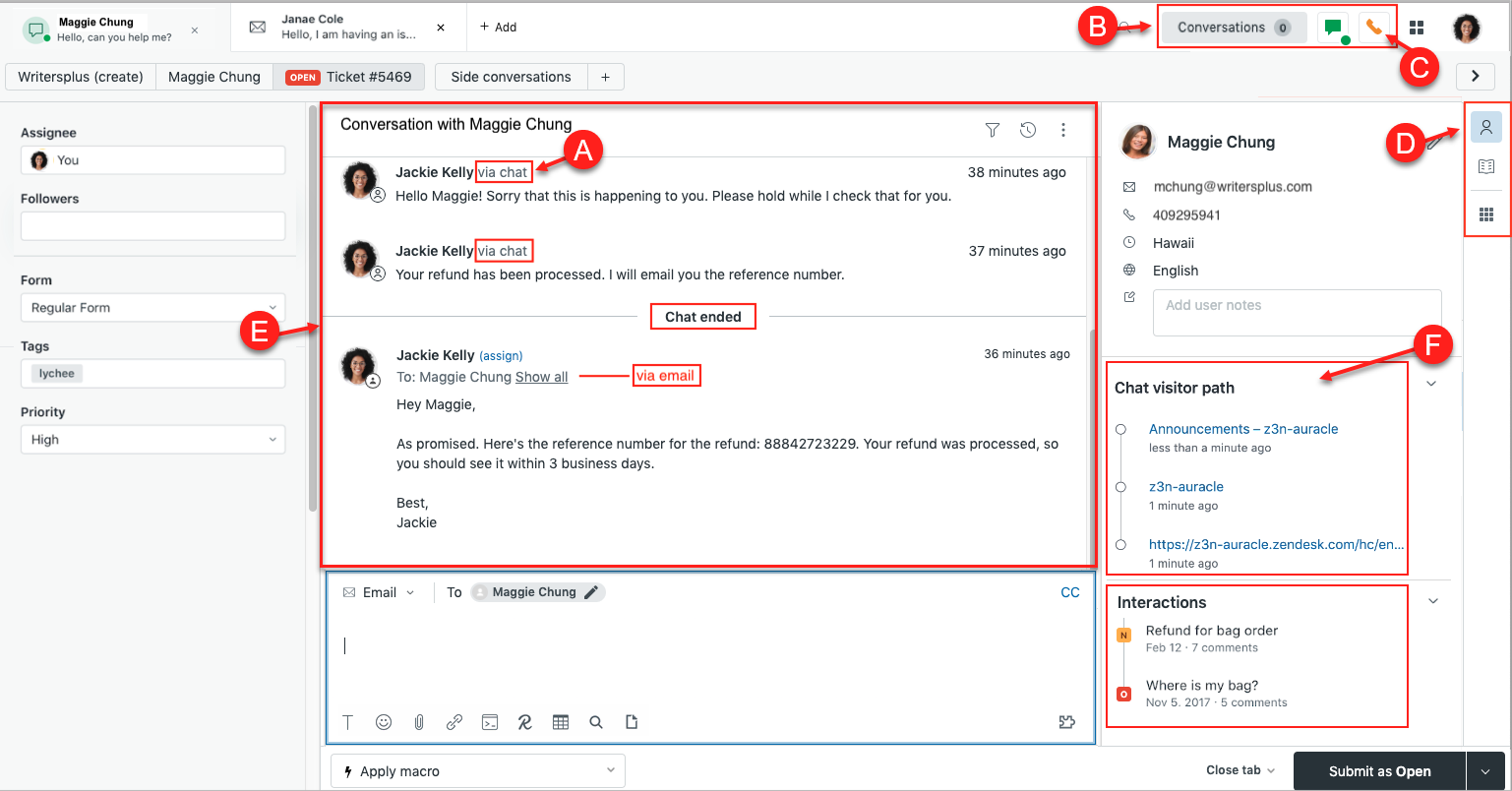
The life of a ticket
Every ticket follows the same journey. Your job is usually the middle of it, but you should know the whole pipeline:
- Newarrives
- Openagent working
- Pendingwaiting on customer
- Solvedfix confirmed
- Closedlocked
Every status, explained
The status tells everyone whose turn it is to act. That is the only thing it is for, learn it and the queue makes sense.
| Status | What it means | Whose move |
|---|---|---|
| New | The ticket arrived but no one has responded yet. Unassigned or freshly assigned. | Agent, pick it up or it's routed to you |
| Open | You (or a teammate) are actively working it. The last reply was from us. | Agent, keep driving it |
| Pending | We are waiting on the customer, info, confirmation, a photo. The ball is in their court. | Customer, nudge them if it stalls |
| Solved | The issue is fixed and the customer has what they need. The SLA clock stops here. | Nobody, until the customer replies |
| Closed | Automatically set some days after Solved. Read-only, a reply from the customer opens a new ticket. | Nobody, it's an archive |
The two mistakes to never make: leaving a ticket Open when you're actually waiting on the customer (it blocks your capacity and hides the real queue), and marking Solved before the customer confirmed, solve means solved, not "I replied".
How work reaches you
You don't go hunting for tickets, work comes to you, in two different ways depending on the channel:
- Email & API tickets are assigned directly to an agent. When one lands, it's yours, no need to accept it.
- Messaging & calls use offer and acceptance: the system offers you the conversation and you accept it. If you don't, it offers the next available agent.
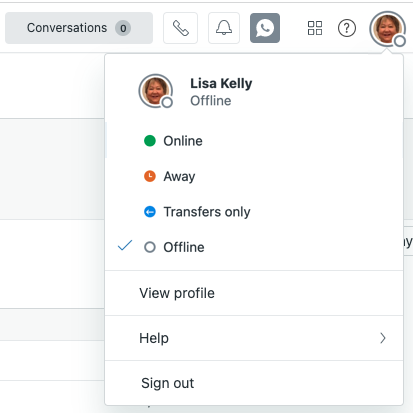
For this to work you must be Online, in a group with the routing rule, and below your capacity (the max simultaneous conversations). Check your status in the top-right of the workspace before anything else, a surprising number of "I'm not getting tickets" cases are just being set to Away.
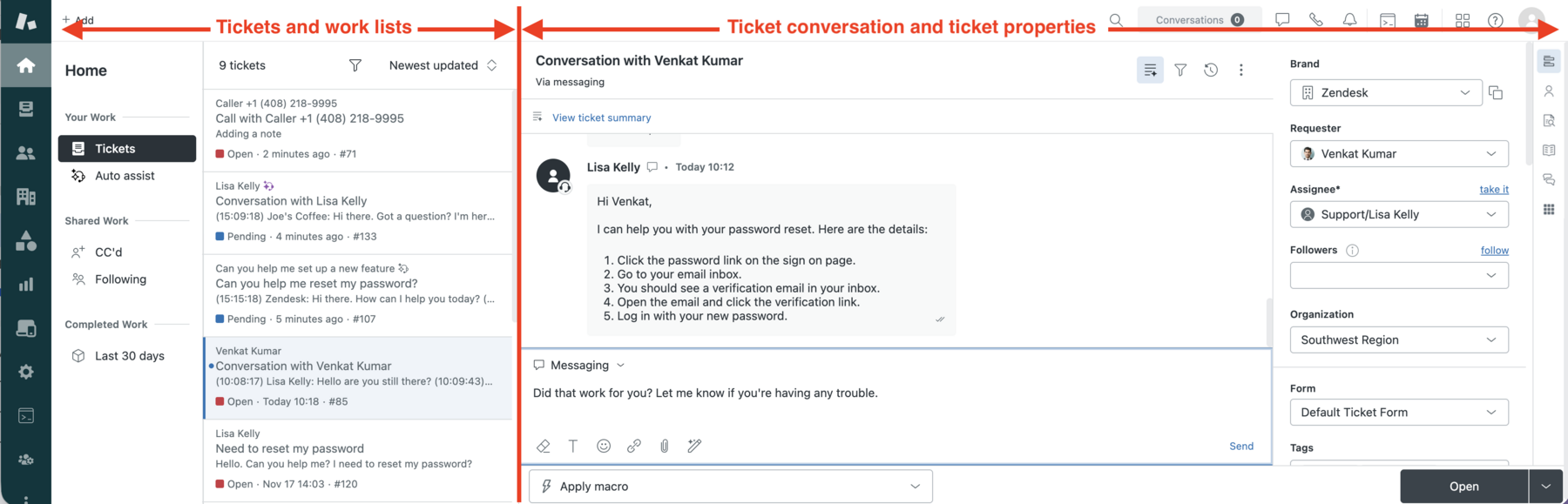
Views, your queue
A view is a saved filter: "all my open tickets", "unsolved tickets in my group", "tickets pending more than 2 days". You'll live in one or two views. The numbers refresh as conditions change, when a customer replies to a Pending ticket, it flips back to Open and reappears.
- Work your personal view first, those are tickets already assigned to you.
- Then your group view, unassigned work nobody owns yet.
- Sort by SLA / oldest first unless your team lead says otherwise.
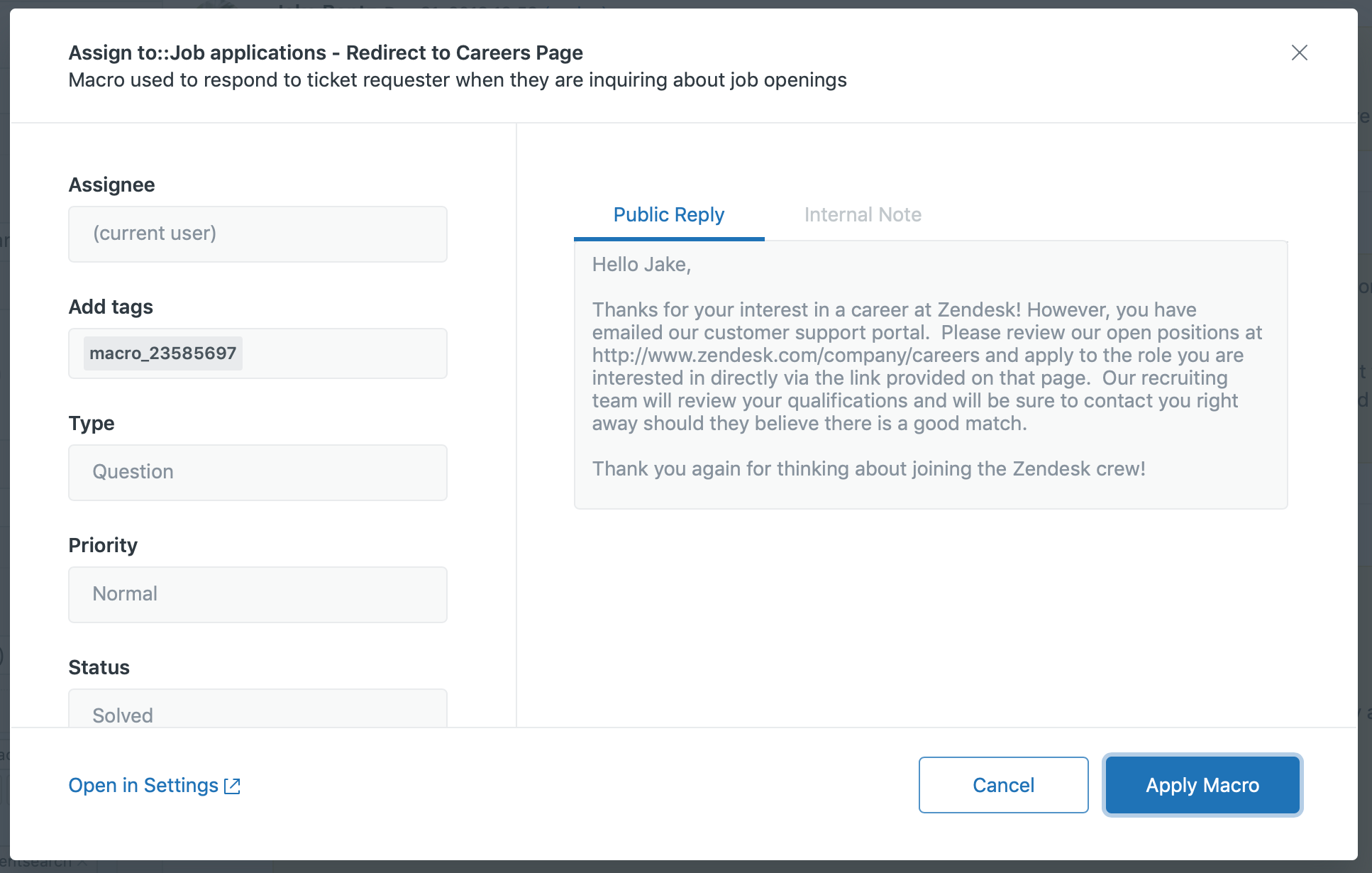
Macros, don't type the same thing twice
A macro is a pre-written reply template that also sets ticket properties (status, group, tags). If you type the same explanation more than twice a week, a macro should exist for it, and if it doesn't, ask; macros are shared team knowledge.
Always read a macro before sending and personalise the parts that need it (names, reference numbers). Customers can smell a lazy template instantly.
SLAs, the clock you're against
Each ticket priority carries targets, usually first reply time and resolution time. The SLA panel on the ticket shows the target and how close you are. High-priority tickets jump the queue, always. When you're unsure what to do next, the ticket with the nearest-breaching SLA is the one to open.
Your first-week checklist
- Confirm your status is Online and you're in the right group and capacity rule.
- Favourite the two or three views your team actually uses.
- Read the team's top 10 macros before you need them.
- Practise the full status flow on a sandbox ticket: New → Open → Pending → Solved.
- Ask where the escalation path lives for your queue, and who to ping when unsure.
- Bookmark this page. You'll come back to the status table.